Friday, 8 July 2016

How to Save Pdf in Microsoft Office 2007

In day to day work on computer some time we require to convert our word and excel file to PDF file. Most of the time, we do it through online searching in Google and use other website to convert online. But we can do it in offline mode with less time consuming and simple process for 2007 Microsoft Office. There is a Microsoft add-on known as "Save as PDF" available in Microsoft website. You can download the add one and install it. The installation process is very simple one. 


1. Click On Find add-ins for other format. 


2. Then Click on Microsoft save as pdf
3. Then Click on Download.


4. Now Install it download file.


After installation open the Word or Excel file you want to save as PDF. Click the Office button on the left side top corner, click Save as. Then you will find the PDF option. Click that one; a window will open to save the document as PDF. Type the File name and click Publish button. It will save the document as PDF.


If Show PDF or XPS so Work Is Done.

This is a easy process to convert the document offline without going to other website and follow their instructions.

Top 15 Secret Codes For Iphone

Iphone is one of the most popular smartphones in mobile market. Apple has also secret codes like android secret hidden codes. Now in our blog this post we reveal iPhone secret hidden codes.


Iphone IMEI
*#06#
all of iPhone inner settings, cell information and newest network.
*3001#12345#*
call forwarding when the iPhone is busy.
*#67# 
It will display you available minutes
*646# (Postpaid only)
To check the Bill Balance
*225# ( Postpaid only)
To check the Account balance
*777#  (prepaid only)
You can check call control bars
*#33#
For checking connected line presentation
*#76#
You can set inquiry for call forwards.
*#21#
To Check Numberof Missed call
 *#61#
To check  SMS center.
*#5005*7672#
Call Waiting Status
*#43# 
Activate a waiting.
*43#
Deactivate waiting.
#43#
It allow you hide your number.
*#31#  

Monday, 13 June 2016

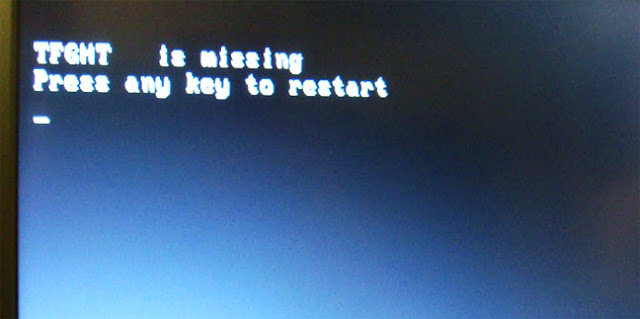
Missing TFGHT in windows 7 fix 100% working

Many Time when you install window 7 operating system on your computer or laptop after done installation showing is Missing TFGHT, So don't be sad you don't install operating system again, follow our instructor.  


Solution 1
Try the below option it worked for me

1) Insert my installation operating system disk 
    (Win 7 CD/DVD), boot from the disk, went to command
    prompt window.

2) Type following commands:
     bootrec /fixmbr
     bootrec /fixboot
     bootrec /rbuildbcd
     exit
3) Perform the automatic repair,
4) Then click on restart.
 Now solved your problem.

 
Solution 2

Follow the steps to uncheck "Compress drive to save disk space".

1) Start your computer from the Windows 7 installation 
    DVD or  Repair DVD.
2) Select Repair your computer.
3) Load driver.
4) Go to Computer and right click drive where Windows 7 
     is installed.
5) Select Properties and uncheck "Compress drive to save 
    disk space".
6) Close and restart the computer normally.

Top 5 Amazing keyboard shortcuts

Using keyboard shortcuts can greatly increase your productivity, reduce repetitive strain, and help keep you focused. For example, to copy text, you can highlight text and press the Ctrl + C shortcut. The shortcut is faster than moving your hands from the keyboard, highlighting with the mouse, choosing copy from the file menu, and then returning to the keyboard.

 1.Ctrl + Z and Ctrl + Y

Pressing Ctrl + Z will Undo any change. For example, if you cut text, pressing this will undo it. These shortcuts can also be pressed multiple times to undo or redo multiple changes. Pressing Ctrl + Y would redo the undo.


2. Ctrl + Back space and Ctrl + Left or Right arrow
Pressing Ctrl + Backspace will delete a full word at a time instead of a single character.

Holding down the Ctrl key while pressing the left or right arrow will move the cursor one word at a time instead of one character at a time. If you want to highlight one word at a time, hold down Ctrl + Shift and then press the left or right arrow key to move one word at a time in that direction while highlighting each word.

3. Ctrl + Home or Ctrl + End
Ctrl + Homewill move the cursor to the beginning of the document, and Ctrl + Endwill move the cursor to the end of a document. These shortcuts work with most documents, as well as web pages.

4. Alt + Tab or Ctrl + Tab
Pressing Alt + Tab switches between open programs moving forward. For example, if you have your browser window open and other programs running in the background press and hold Alt and then press tab to cycle through each open program.
Tip: Press Ctrl + Tab to switch between tabs in a program. For example, if you have multiple tabs open in your browser now press Ctrl + Tab to switch between open tabs.
Tip: Adding the Shift key to Alt + Tab or Ctrl + Tab moves backward. For example, if you are pressing Alt + Tab and pass the program you want to use, press Alt + Shift + Tab to move back to that program.
Tip: Windows Vista and 7 users can also press the Windows Key + Tab to switch through open programs in a full screenshot of the window.

5. Ctrl + C or Ctrl + Insert and Ctrl + X

Both Ctrl + C and Ctrl + Insert will copy the highlighted text or selected item. If you want to cut instead of copy press Ctrl + X.


Notepad look like Matrix.

Notepad is the Best and Simple text editor, Almost everyone knows what notepad is, and despite being a simple looking and functioning application what kind of a power it actually possesses. According to the trick it really seems Microsoft had put some hack into the coding of notepad making the text hidden after saving it.


Steps:
Go to Notepad and copy below codes

@echo off
color 02
:start
echo %random% %random% %random% %random% %random% %random% %random% %random% %random% %random%

Save this file as matrix.bat
Now open this file as see matrix effect on your screen.


Saturday, 11 June 2016

how to Whatsapp use without phone number

You can use whatsapp without any phone number.yes it is true information, now you use whatsapp without any phone number with following easy steps:

You can use whatsapp without any phone number. Yes you heard it right. Follow Steps:

Steps: 
1. Uninstall whatsapp from your mobile.

    2. Download whatsapp from play store.

    3. Turn the flight mode on.

    4. Download and install spoof messages app from play store

    5. Start the installation process.

    6. Now , It will not be able to verify you via internet and it will  
        prompt you to choose alternate SMS Method.

    7.Now choose check through sms and enter your email.

    8.Instantly without waiting for any more time click on cancel and 
        authorization process will stop. 
    9. Now open the spoof messaging app and enter below details.

       To: +447900347295 From: +(Country code)(mobile number) 
        Message: Your email address

     It will now verify whatsapp for you and you will start using 
     whatsapp.

How to Recover Deleted Messages on Whatsapp

Delete your Important Conversation on whatsapp so don’t be sad, now you recover your Important Conversation on whatsapp. Just Simple Follow Steps.


Steps:
Go to: SD card -> WhatsApp -> Databases and look for two files named – msgstore-yyyy-mm-dd.1.db.crypt5 and msgtore.db.crypt.


The first file contains all the messages you’ve sent or received in the last seven days (yyyy-mm-dd.1 correspond to the respective year, month and day and the 1 after dd signifies that it was the first backup taken on that day) while the second file contains all messages sent or received on that day.

To restore your Whatsapp messages, rename msgtore.db.crypt to OLDmsgtore.db.crypt or something to identify the old backup easily, so in case if something goes wrong, you can try again. Select the database you wish to restore from the files left and rename it to msgtore.db.crypt. Uninstall and re-install Whatsapp and when prompted choose Restore. The chat file you saved with the name msgtore.db.cryptis restored. Restoring an earlier database, automatically clears your current chat history and there’s no way to merge your old database and your current chat history.
While you cannot open these files with a text editor since they’re encrypted, you can anyways use Whatsapp Xtract to read your Whatsapp database on computer.